Google Sheets Integration
Seamlessly create, read, update, and delete Google Sheets directly through Allios. Eliminate context-switching and streamline your data management workflows.
These features mirror what Allios does for Google Drive but with spreadsheet operations instead of file operations.
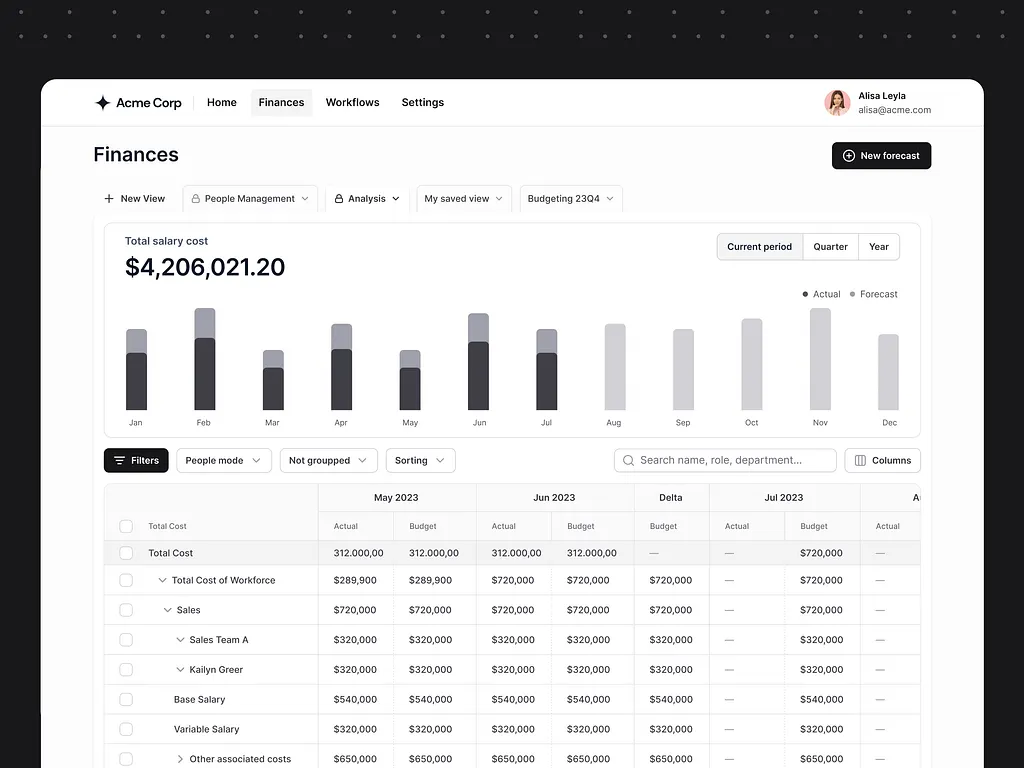
- Create new spreadsheets from templates or blank sheets.
- Read existing spreadsheet data and display it in Allios.
- Update spreadsheet cells with new data from Allios.
- Delete unwanted spreadsheet rows or columns directly from Allios.
- Link to Projects, Clients & Cases: each spreadsheet is contextually tagged (client, ticket, project) automatically.
Minimum Google Sheets API scopes used
Allios only asks for permissions strictly required for the enabled features. Overly broad scopes are avoided to reduce user risk.
https://www.googleapis.com/auth/spreadsheets— read and write access to your sheets.https://www.googleapis.com/auth/drive— access to files in your Google Drive (for file management).https://www.googleapis.com/auth/drive.file— access to specific files created or opened by the app.
How Allios connects your Google Sheets account
- User clicks “Connect Google Sheets” in Allios and is redirected to Google's OAuth consent screen.
- User reviews requested Google Sheets scopes and approves access.
- Allios receives an access token (and refresh token) and stores them securely (encrypted at rest).
- On behalf of the user, Allios can call Google Sheets APIs to read, write, or update spreadsheet data — but only within granted scopes.
Security & Data Handling
- OAuth tokens (access + refresh) are encrypted in Allios’ backend and not exposed to front-end code.
- All communication with Google Sheets APIs happens over HTTPS / TLS to prevent interception.
- Allios persists only necessary copies of messages (e.g. for search/index), with retention policies per tenant.
- Users may disconnect Allios from Google Sheets anytime via their Google Account > Security > Third-party apps.
- Upon disconnect or request, Allios deletes stored email content as per data retention policies.
Productivity & User Benefits
Here are the direct wins your users get when Allios integrates Google Sheets:
- One unified interface: No need to juggle Google Sheets tabs and Allios — all communication lives inside your app.
- Contextual data: Spreadsheet data automatically attaches to clients, issues or projects, reducing manual linking or tracking.
- Template reuse: Teams can save and reuse spreadsheet templates (e.g. “Monthly Report”, “Budget Plan”) across all tenants.
- Automated archiving & search: All spreadsheet data is stored and searchable inside Allios, eliminating hunting through sheets.
- Tracking & analytics: Monitor usage patterns, popular templates, and user engagement with spreadsheet data.
Revoking Google Sheets Access / Disconnection
Users remain in full control:
- Go to Google Account → Security > Third-party apps with account access.
- Find Allios in the list and click Remove access.
- Optionally, notify Allios support to request purging of any associated spreadsheet data stored.